
Create a 3D theme in v2
Draw UV atlases, configure materials and a coin, test every face, and publish a Dice View theme.
This article documents the published v2. For the current physics preview, see the v3 guide. V3 ↗ Licenses ↗
In this tutorial, you will make an obsidian theme using the bundled 3D model. It will have new numerals, optional relief, and your own palette. By the end, any die rendered by Dice View can use theme: 'obsidian'.
You need: @erpg/dice3dview 2.6.1, the package’s public assets, an editor that preserves transparency in WebP/PNG/SVG, and a project that serves public/ files. Inspect the v2 files in Texture maps. The gallery and studio use v3; for a new project, follow the v3 tutorial.
1. Host Dice View assets
Copy node_modules/@erpg/dice3dview/dist/assets/dice-box/ to public/assets/dice-box/. The viewer’s default assetPath is /assets/dice-box/. Confirm that /assets/dice-box/themes/default/theme.config.json and /assets/dice-box/themes/default/default.json load in the browser; the new theme will reuse the default model.
public/assets/dice-box/
├── havok/HavokPhysics.wasm
└── themes/
    ├── default/
    │   ├── default.json
    │   ├── diffuse-light.webp
    │   ├── diffuse-dark.webp
    │   └── normal.webp
    └── obsidian/
        ├── theme.config.json
        ├── diffuse-light.webp
        ├── diffuse-dark.webp
        └── normal.webp
Create obsidian/ and copy the light atlas, dark atlas, and optionally the normal map. Your first verifiable result is a new folder with images that load over HTTP.

2. Redraw numerals on their UV islands
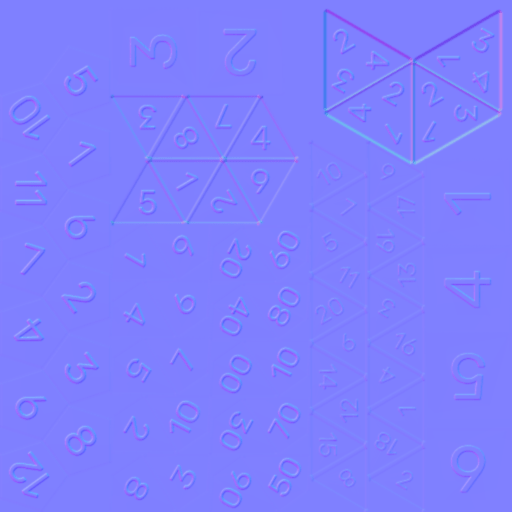
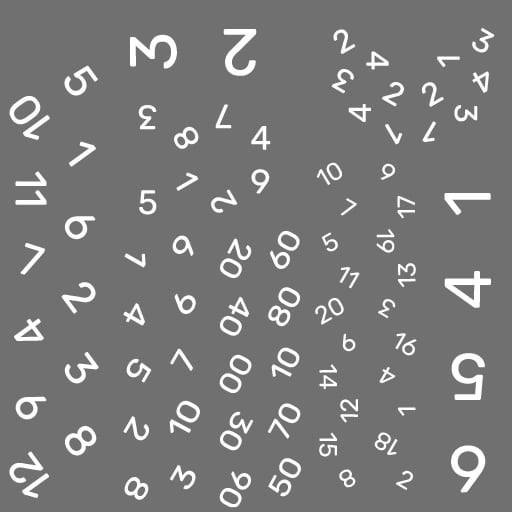
Open both diffuse copies on a 1024 × 1024 pixel canvas. Replace each numeral’s shape while preserving its position and scale on the original island; keep surrounding alpha transparency. The light variant has light glyphs for dark dice, and dark has dark glyphs for light dice. View chooses a variant based on themeColor.
Do not rearrange faces into a grid or swap numerals between islands. The file is a UV atlas for default.json, not an ordered result table. Moving a glyph can make the die show a value different from the one passed to the viewer. Compare your map with the originals in the gallery before continuing.
For full-color art, choose material.type: 'standard' and create one diffuse texture containing the face colors. With type: 'color', alpha lets themeColor fill the body, ideal for recolorable skins.
3. Adjust relief, highlights, and coin
If the new numerals have different shapes, edit normal.webp in the same UV layout. Old relief beneath a new glyph looks doubled. If you do not need relief, omit bumpTexture and bumpLevel. The bundled specular sample is optional; it is used only when specularTexture points to it.
The d2 coin has separate front and back art. You can reuse ../default/coin-1.svg and ../default/coin-2.svg or publish your own. Keep front 1 and back 2; art does not change physical values. With colorize: true, transparency takes themeColor; with false, the illustration keeps its colors and the rim can use edgeColor.
4. Write theme.config.json
Save this manifest at themes/obsidian/theme.config.json. It uses your three new maps and the default coin. material and diceAvailable are required. Without meshFile, View loads themes/default/default.json.
{
  "name": "Obsidian",
  "systemName": "obsidian",
  "material": {
    "type": "color",
    "diffuseTexture": {
      "light": "diffuse-light.webp",
      "dark": "diffuse-dark.webp"
    },
    "diffuseLevel": 1,
    "bumpTexture": "normal.webp",
    "bumpLevel": 0.5
  },
  "diceAvailable": ["d2", "d4", "d6", "d8", "d10", "d12", "d20", "d100"],
  "coin": {
    "front": { "value": 1, "texture": "../default/coin-1.svg" },
    "back": { "value": 2, "texture": "../default/coin-2.svg" },
    "colorize": true,
    "diameter": 1,
    "thickness": 0.12
  }
}
Check that /assets/dice-box/themes/obsidian/theme.config.json responds with JSON and that each relative file path also loads. diceAvailable describes intended support; actual support requires a mesh, collider, and face map for each shape. The d2 coin is procedural.
5. See the theme on a real die
The v3 studio accepts local images and URLs, applies them to real 3D dice, and exports theme.config.json. To verify the hosted theme in your v2 app, use the v2 viewer directly:
import { DiceResultViewer } from '@erpg/dice3dview/external'
import '@erpg/dice3dview/style.css'

const viewer = new DiceResultViewer({
  container: '#dice-stage',
  assetPath: '/assets/dice-box/',
  theme: 'obsidian',
  themeColor: '#e60049'
})

await viewer.display({
  id: 'obsidian-test',
  dice: [
    { id: 'd20', sides: 20, value: 18 },
    { id: 'coin', sides: 2, value: 1 }
  ],
  mode: 'physics'
})
value comes from Dice Core or your application; View does not draw or alter the face. To apply the theme to one die only, pass theme: 'obsidian' and themeColor on that die.
6. Verify contrast and results
Roll each shape declared in diceAvailable and compare the visible number with value. Test a dark and a light color to check both diffuse variants; inspect both coin faces. Repeat in mode: 'physics' if your app uses Havok. A visual test covering only d20 might miss a mismatched d4 or d100 UV island.
After changing an already loaded theme under the same name, dispose the viewer and create a new instance to refresh its manifest/model caches. During development, check the browser Network panel for the new downloads too.
7. Host outside the package
To serve the theme from another origin, publish a folder with theme.config.json and your maps. Set CORS and map a name to the folder URL, without the JSON filename:
const viewer = new DiceResultViewer({
  container: '#dice-stage',
  assetPath: '/assets/dice-box/',
  externalThemes: { obsidian: 'https://cdn.example.com/dice/obsidian' }
})

await viewer.display({
  id: 'external-theme',
  dice: [{ id: 'd6', sides: 6, value: 4, theme: 'obsidian' }]
})
Relative textures resolve from the external theme folder; root-relative / paths, HTTP(S), and data: URLs also work. If an external theme reuses ../default/coin-1.svg, that path must exist at the external origin or be replaced by an explicit public URL.
Custom 3D model
To change geometry, set meshFile relative to the theme folder. For each supported polyhedron, the Babylon JSON needs a visual dN mesh, a dN_collider, and colliderFaceMap.dN mapping triangles to face values. d4 uses its downward resting face; other dice point the selected face upward. d100 may reuse d10 templates but still needs its own face mapping. An attractive mesh with an inconsistent map can land showing the wrong result.
To replace numbers with symbols while keeping bundled meshes, follow Customize symbolic faces. For every manifest field, see Themes and assets and Texture maps.